


Follow these steps to get your Life watch connected for better safety for loved ones and more peace of mind for you.
Unbox confidence with every step
Life brings safety, connection, and reassurance together in one simple, easy-to-use platform.

Life SmartwatchOur 4G smartwatch is designed to keep your family confidently connected with phone calling, chat, GPS, SOS alerts and fitness monitoring. This device is capable of both inbound and outbound calls.

Charging Dock and Cable Conveniently charge your Life smartwatch to keep up with your family's life for up to a day, or more, depending on how active they are.

SIM Card Pre-installed The SIM comes pre-installed in your Life smartwatch. Your SIM card ID is printed on the separate information card that's included in the box.

Quickstart Guide Get connected, get set up, and unlock every freedom-first feature your Life smartwatch has to offer.
Important Information Before You Begin
Charge the watch for 12 hours before pairing
For best performance and a smooth setup experience, please fully charge the Life smartwatch for at least 12 hours before pairing.
Life smartwatch can make and receive calls
With an active mobile plan, your Life smartwatch can make calls and send texts, as well as receive them.
Recommended for users aged 13+
Life smartwatch is designed for anyone 13 and over, built to feel at home on every wrist, from teens to adults.
Spacetalk Mobile Plan required
Get your Life smartwatch mobile plan on the Spacetalk App to ensure your watch is connected safely and securely.
Setup in minutes. Stay connected for a lifetime.
Give your loved ones the confidence to live independently and enjoy the comfort of knowing they’re safe.

Step 1: Charge your Life smartwatch
Connect the USB cable to charging dock and place the watch on the dock, with the SOS button facing up. Wait for the red light to turn green.
This may take up to 12 hours to fully charge.

Step 2: Download the Spacetalk App
Scan the QR or click below to create a new Spacetalk account.
You can skip this if you already an existing Spacetalk account.


Step 3: Activate your Spacetalk Mobile SIM Plan
Activate your SIM in the Spacetalk App under ‘Membership’ and follow the simple steps.
Be sure to keep the SIM card number printed on the included plastic card.

Step 4: Pair your new Life smartwatch
Pair your new watch to a Space by selecting ‘Pair a Watch’ and follow the simple steps.
Ensure your Life smartwatch is turned on and updated to the latest software before attempting to pair.

Step 5: Configure your newly paired Life smartwatch Once paired, follow the simple steps to ensure your Life smartwatch fits your wearer’s lifestyle.

Guided Setup Made Simple
Setting up your Life Smartwatch should be simple and straightforward. If you’d like a more detailed walkthrough or extra guidance at any stage, our Step by Step Guide takes you through everything at your own pace. It covers charging, pairing, SIM activation and key settings in greater depth, with clear instructions and helpful prompts along the way.
Download our Step by Step Guide below for clear instructions that help you get your watch ready, paired and fully configured before you begin using it.
Discover your Life Smartwatch
Bring all the essentials of safety and connection into one smart, simple device.

Powering up your watch
ON: Hold the power button on the right-hand side until the ‘Spacetalk’ logo appears. The watch will also vibrate.
OFF: Hold the power button on the right-hand side until you see the ‘shutdown’ prompt. Tap ‘YES’ to shut the device down. Press ‘No’ to cancel.

Interacting with your watch
Wake: Press the power button or lift the watch if ‘Lift to wake’ is enabled.
Screens: Swipe left on the watch face to access the next page. Slide down from the top of the screen to access the drop-down menu.
Back: Press SOS button to return to the previous screen/menu.

Connect with loved ones
Calls: Tap on the phone icon. Type or search through trusted contacts saved on the Spacetalk App.
Text: Tap on the message icon. Type or search through trusted contacts saved on the Spacetalk App to send a voice message, text message or voice call.
Location: Tap on the location icon. Share your location to connected people on the Spacetalk App by tapping ‘Send Location’.

Configure your watch
Alarms: Tap on the calendar icon. Adjust time, day and alerts to save.
Wallpaper: Tap on the main screen. Tap and hold on the watch face icon. Swipe left and right to see options, and tap to select.

Your User Guide to the Life Smartwatch
Your Life Smartwatch is designed to keep you connected, safe, and confident in your day-to-day routines. From waking the screen and moving between pages, to making calls, sending messages, checking the weather, or sharing your location, everything you need is just a tap or swipe away.
You’ll also find helpful wellness features such as step tracking, reminders, alarms, and optional fall detection for extra peace of mind. Whether you're using Life for independence, safety, or simply staying in touch, this guide will walk you through the essentials so you can get the most out of your watch right from day one.
A Quick Tour of Your Watch
Discover safety, freedom and connection on the new Spacetalk App
Embrace the chaos. Join the Freedom Platform.
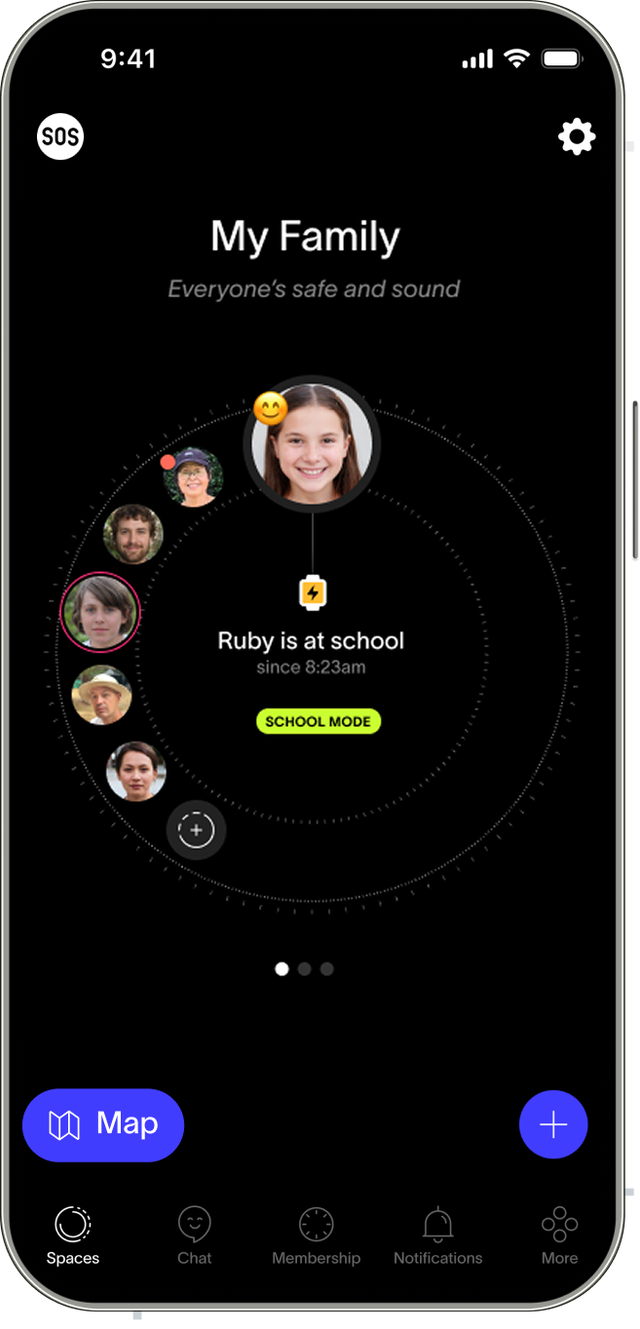
Organise your world into Spaces One for the family chat, one for the sports team, one for the grandparents. No more group chat chaos.
Set safe Places for trusted spots Get a notification when someone arrives, leaves, or goes off-route.
Keep people on track with Routes Guide your people with custom safe Routes and boundaries.
Check-Ins to emotionally connect Quick “How are you feeling?” emoji requests.
Safety at a glance Know they’re safe, with a single look.
Live Location to always find their way Easily get together, or find each other in a crowd, in real time.
Live Updates to stay in the know View your people’s status at a glance for instant peace-of-mind.